Plan your writing and connect verified sources to editable citations
This guide is for researchers who use AI to help check citations in a Word manuscript. The aim is to save time while keeping references accurate and relevant to the claims they support. An AI-generated citation may look convincing even when its details are incorrect or the source does not support the sentence.
The workflow uses Codex and the Zotero API to find candidate records, compare bibliographic details, and prepare confirmed citations for insertion into Word. Checking whether a source supports a claim also requires reviewing the relevant passage in the original work. A matching author, year, or DOI establishes the source’s identity not the strength of its evidence.
Check the source and the claim
Two questions guide the review: does the cited work exist, and does it support what the manuscript says? Zotero provides the reference records, while AI can assist with comparison and flag inconsistencies. Where the full text is unavailable or the evidence is unclear, the citation should remain marked for review.
What the AI should check
- Do the author, year, title, and DOI identify the intended work?
- Does the source support the specific claim in the sentence?
- Does the wording overstate the findings or omit important limitations?
- Are any references missing, duplicated, or potentially fabricated?
- Which citations are confirmed, and which require further review?
Once these checks are complete, confirmed references can be linked to live Zotero fields in Word. This reduces repetitive insertion and formatting work while keeping the author responsible for the evidence behind each claim.
Required files and access
manuscript.docx — The Word manuscript containing author–year citations and a reference list.
.env — Local settings containing the Zotero API key, library ID and library type. The processing script reads this file; keep the key private.
Source PDFs or relevant passages — Material needed to assess support for each cited claim. When unavailable, the claim remains unverified.
Zotero desktop and the Word add-in — Required to inspect the generated citations and refresh the bibliography. API access must permit reading the intended library; importing missing records also requires write permission.
Local configuration example
ZOTERO_API_KEY=your_private_key
ZOTERO_LIBRARY_ID=your_library_id
ZOTERO_LIBRARY_TYPE=user
Use group for a group library. Save this as .env beside the processing scripts.
Note — Where to obtain these values
ZOTERO_API_KEY
Sign in to Zotero API Key Settings and create a new private key. Enable access to the intended library. Reading access supports citation checking; adding references also requires write access. Copy the key into your local.envfile and keep it private.ZOTERO_LIBRARY_ID
For a personal library, use the numeric User ID displayed on the Zotero API settings page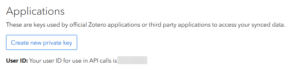
ZOTERO_LIBRARY_TYPE
Enteruserfor your personal library orgroupfor a shared group library.
Figure A: Zotero API settings showing the location of the personal library User ID.
Prompt to use
Check the citations in manuscript.docx using my Zotero library and local .env settings. Match authors, years, titles and DOIs. Review available source PDFs or passages to assess whether they support each cited claim. Report reference mismatches and evidence concerns separately, and mark unavailable evidence as unverified. Create a separate Word copy with live Zotero citation fields for confirmed reference matches, preserving formatting and existing fields. Validate the result with the Zotero Word add-in, refresh the bibliography using APA 7, and return the Word copy with a review report. State any citations or document locations that could not be checked.
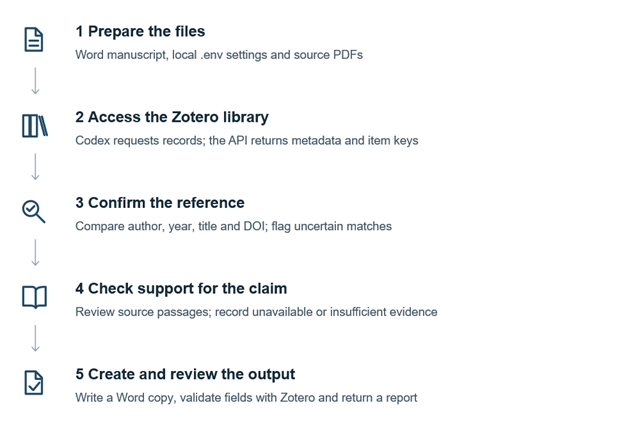
Processing workflow
The diagram shows how the supplied files become a reviewed document. An API match identifies a source; reviewing its contents establishes whether it supports the manuscript.
Expected outputs
A separate Word document with linked citations and a review report listing confirmed matches, unresolved references, evidence concerns and validation results.
Final check
Inspect a converted citation with Zotero Add/Edit Citation and confirm that Refresh completes. Review unresolved findings before submission. Field counts alone do not establish citation accuracy, and a correctly matched reference may still fail to support its associated claim.
The technical process happens after the writing choice
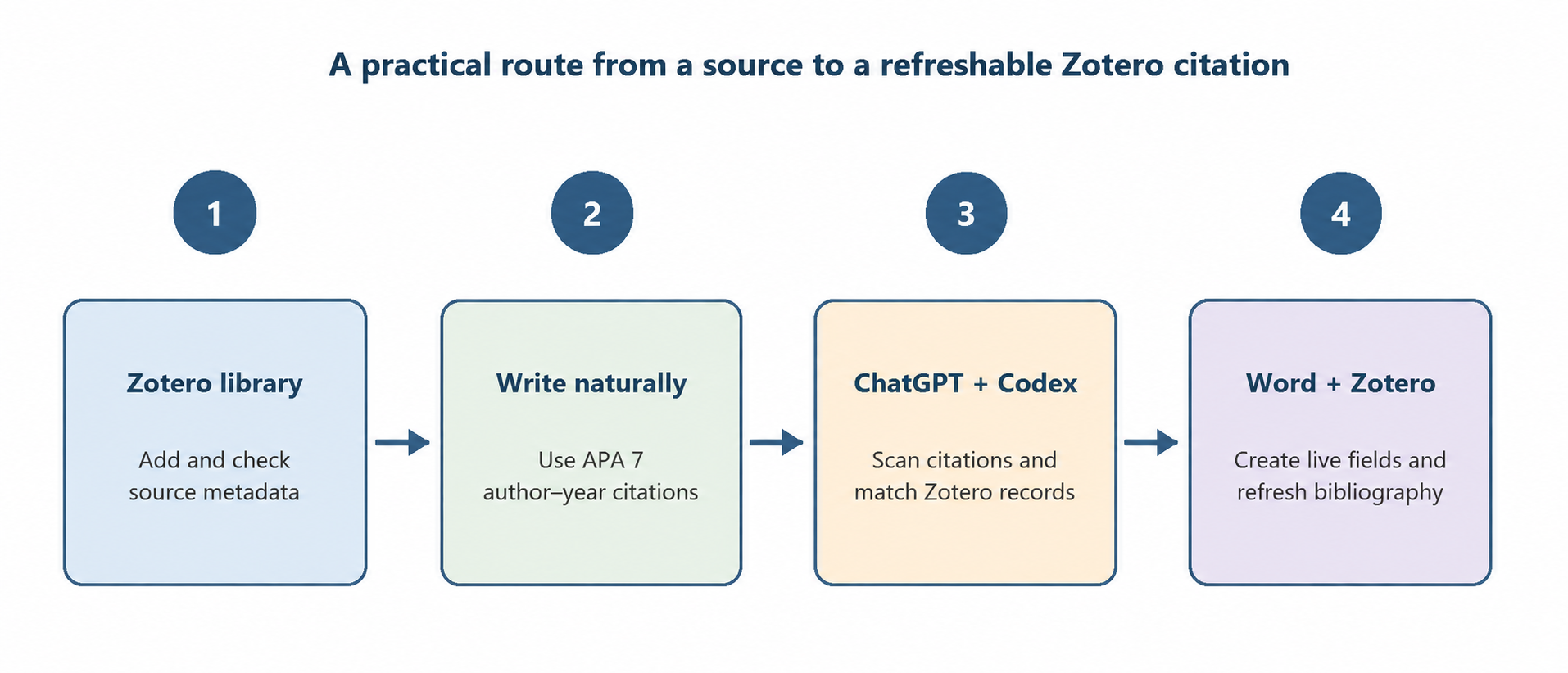
Figure 1. The technical workflow begins only after the writing purpose and audience are clear.
After choosing the writing approach, use Codex to scan the document and compare citations with Zotero records. Check author, year, title and DOI where available, and review ambiguous matches. The API supplies library data; use the Zotero Word plugin to insert or edit live citations and refresh the bibliography. A formatted citation returned by the API is not itself a live Word field.
Where the Zotero Web API fits
The Web API connects a script to an online Zotero library. Version 3 is the recommended starting point for new development. Figure 2 shows the documentation index supplied with this guide; start with Basics for reading records and Item Types/Fields for understanding their metadata.
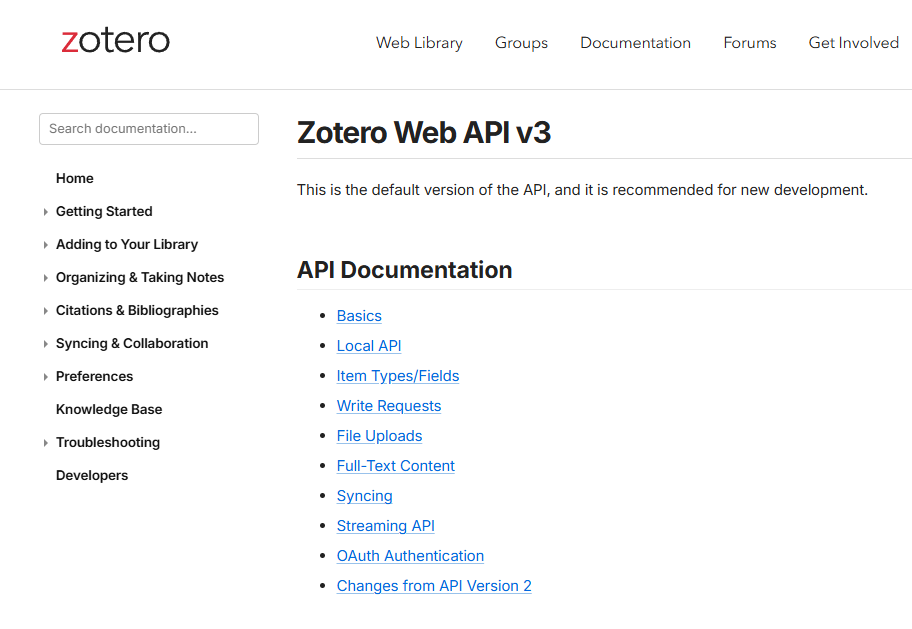
Figure 2. Zotero Web API v3 documentation index. Screenshot supplied by the author.
Zotero Web API v3 documentation
From plain text to a confirmed source
The workflow begins with a Word manuscript containing a sentence such as “Users are more likely to accept a digital platform when they perceive it as useful and easy to use (Davis, 1989).” Initially, the citation is plain text. Codex uses the author and year to find candidate records through the Zotero API, then checks the bibliography against the returned metadata. Once the source is confirmed, Codex replaces the citation in a separate Word copy with a Zotero field. The sentence looks the same, but its citation now contains the source connection. The Zotero Word add-in then verifies the field and refreshes the bibliography.
Before conversion
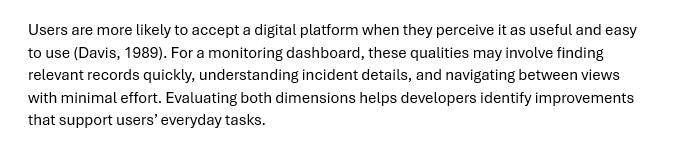
Here, (Davis, 1989) consists only of characters in the paragraph. Matching it to a library item is a processing decision; plain text does not store a Zotero item key.
After conversion
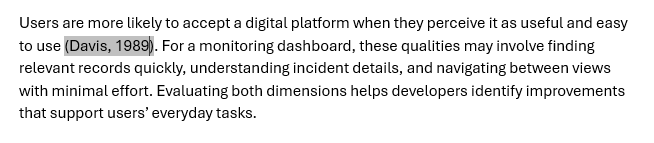
The displayed sentence is the same. In the converted copy, only the parenthetical citation is the result of a Zotero field. A Ctrl+click link to a reference list would be a separate navigation feature.
What the technical representation contains
The following shortened example illustrates the field structure. USER_ID and ITEM_KEY are placeholders, and the metadata is abbreviated. It is documentation, not a complete field to paste into Word or a claim that a conversion has run.
ADDIN ZOTERO_ITEM CSL_CITATION
{
“citationID”: “example01”,
“properties”: {
“formattedCitation”: “(Davis, 1989)”,
“plainCitation”: “(Davis, 1989)”,
“noteIndex”: 0
},
“citationItems”: [
{
“id”: “ITEM_KEY”,
“uris”: [
“[http://zotero.org/users/USER_ID/items/ITEM_KEY](http://zotero.org/users/USER_ID/items/ITEM_KEY)”
],
“itemData”: {
“id”: “ITEM_KEY”,
“type”: “article-journal”,
“title”: “Perceived usefulness, perceived ease of use, and user acceptance of information technology”,
“author”: [
{
“family”: “Davis”,
“given”: “F. D.”
}
],
“issued”: {
“date-parts”: [
[
1989
]
]
},
“DOI”: “10.2307/249008”
}
}
]
}
Word stores a field boundary, this instruction, a separator, the visible result “(Davis, 1989)”, and an end boundary. Typing the instruction as ordinary text does not create that structure. The citationItems array identifies the source; itemData carries its citation metadata.
The API returns library data rather than an executable macro. Codex uses that data to construct the field in this custom workflow. The installed Zotero add-in then interprets it. This can achieve an insertion result comparable to using the add-in, but API success alone does not establish a working Word citation.
Requests and responses behind the document
The sequence follows an existing confirmed library record. Time runs from top to bottom. Verification at step 4 determines whether the workflow can continue to field creation.
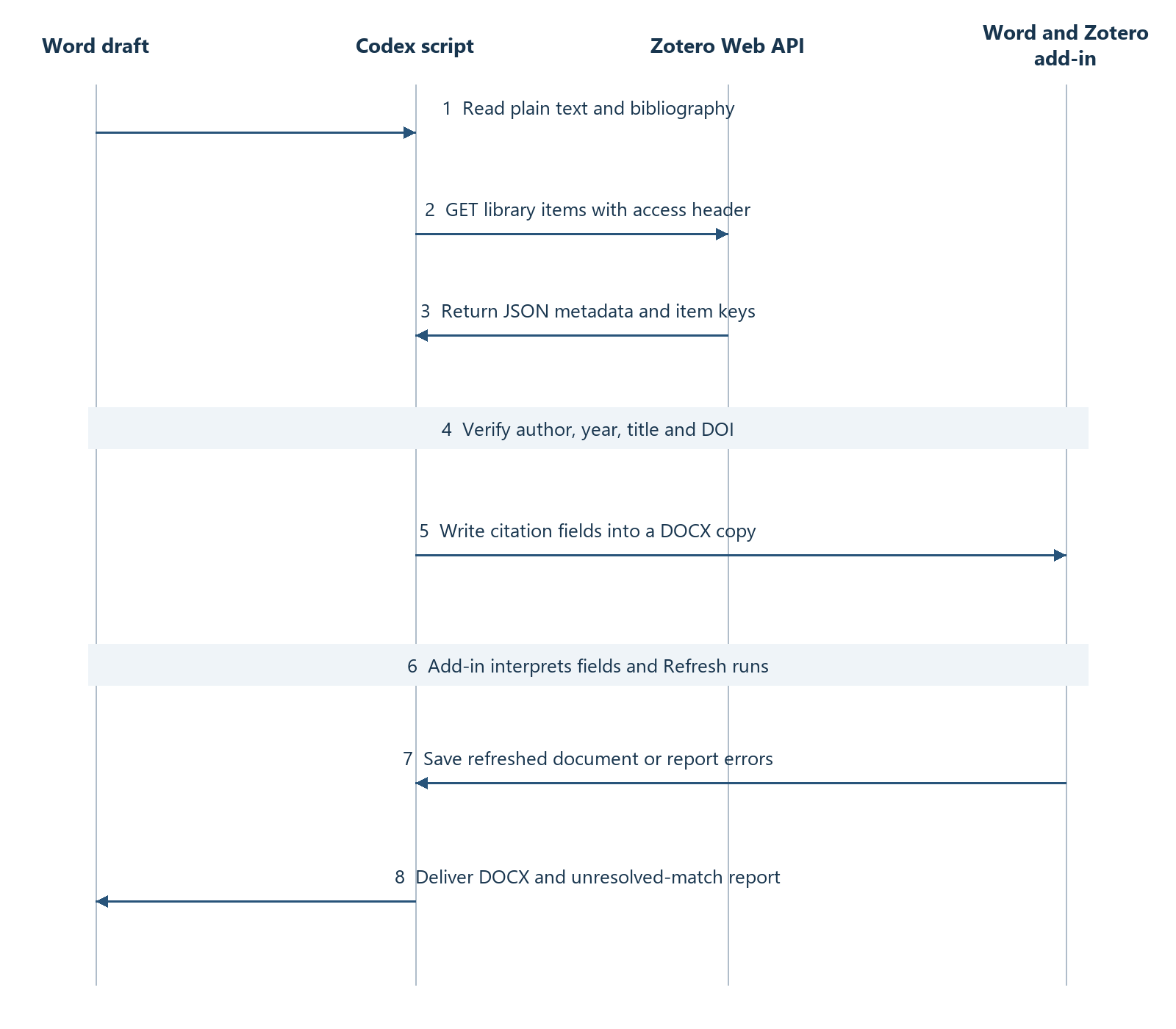
Figure 3. Library requests, metadata responses, field creation, and validation in Word.
If the reference is missing, an additional branch verifies its bibliographic metadata, checks duplicates, and sends a POST request with write permission. The successful response supplies the new item key. An ambiguous match or API failure instead produces a review entry; it must not silently select an unrelated source.
The output consists of the Word copy and a report of matched and unresolved citations. A saved file with field codes is an intermediate result until the add-in recognizes the citations and completes the refresh. The bibliography is managed through a separate Zotero bibliography field.
Confirm the result in Word
For each confirmed source, use Add/Edit Citation in the Zotero tab and select the matching item. Use Add/Edit Bibliography to insert a bibliography, then Refresh after correcting library metadata. Reopen a citation with Add/Edit Citation to verify that it remains connected. If a custom script creates fields, validate them in a separate Word copy before relying on the result.
Official references
Authorized use: This workflow uses Zotero’s official API to access libraries owned by the user or accessed with permission. Keep API keys private, grant only the permissions required, and use documents you are authorized to process.